
Media Library
Paragraph Media Library keeps images tied to pages, with searchable previews, metadata editing, usage references, and safe deletion awareness for editorial teams.
 Grzegorz
Paragraph CMS keeps media tied to the pages that upload and use it. Instead of a disconnected asset bucket, you get a Media workspace where each image can be previewed, searched, edited, traced back to active page references, and deleted with a clear understanding of what will change. If you want the broader product context first, see features.
What it does
Paragraph stores uploaded images as page-owned media items. That makes it easier to answer practical editorial questions like where a file is used, whether it still belongs to an active page, and what will happen if you change its metadata or delete it.
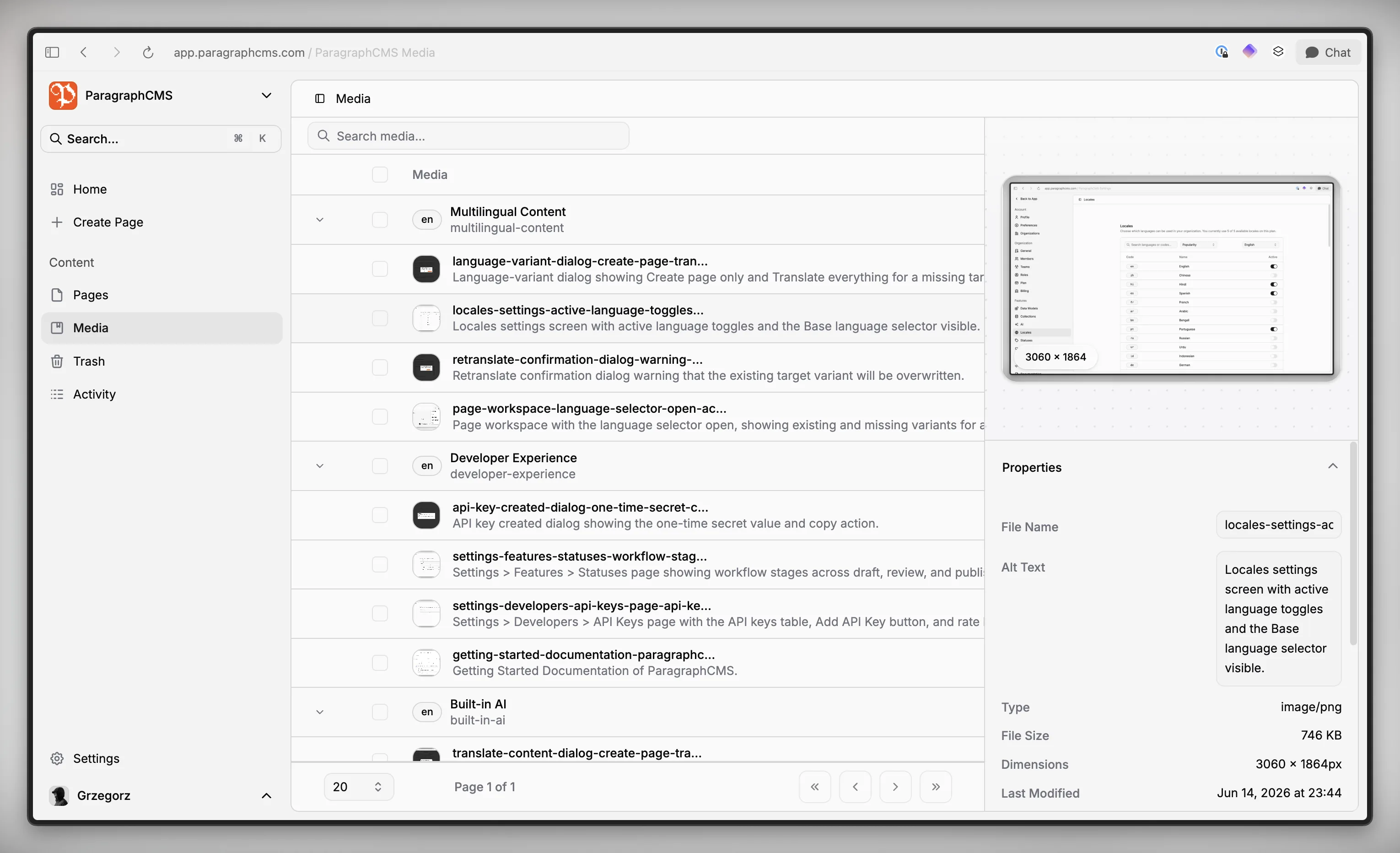
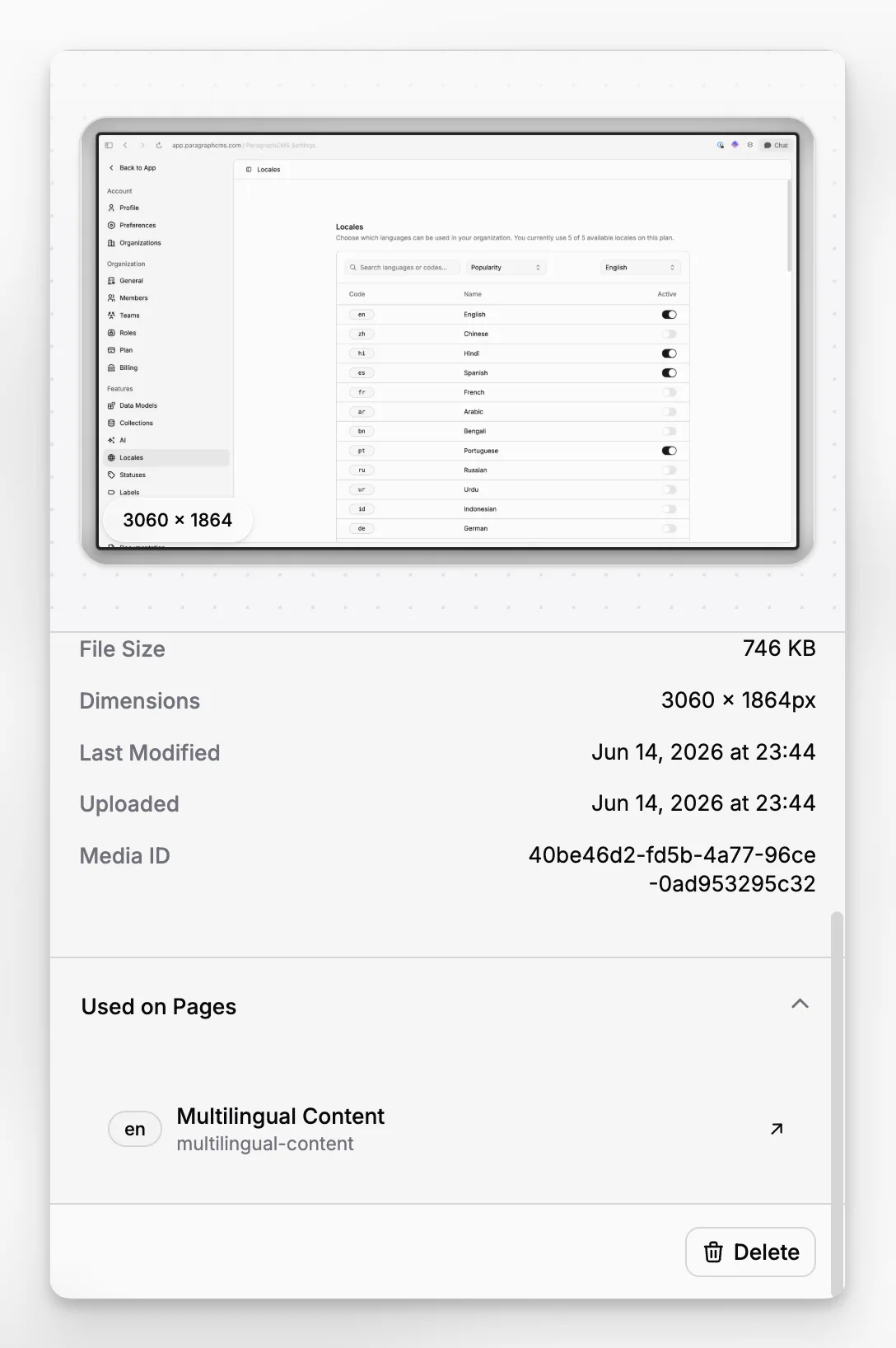
The Media workspace groups files by page, keeps language variants together, and adds an Unassigned media section when a file is no longer referenced on any active page. Each media item can show its preview, file name, alt text, type, size, dimensions, last modified time, upload time, and media ID. Each item also has a Used on Pages list so editors can jump straight back to the pages that reference it.
How it works
Images are uploaded from inside the page editor. Once uploaded, they appear in the editor as media-backed image blocks and also populate the Media workspace. That keeps media connected to the page it came from instead of creating a separate upload flow to manage first. If you are new to the content model, get started gives the broader setup context.
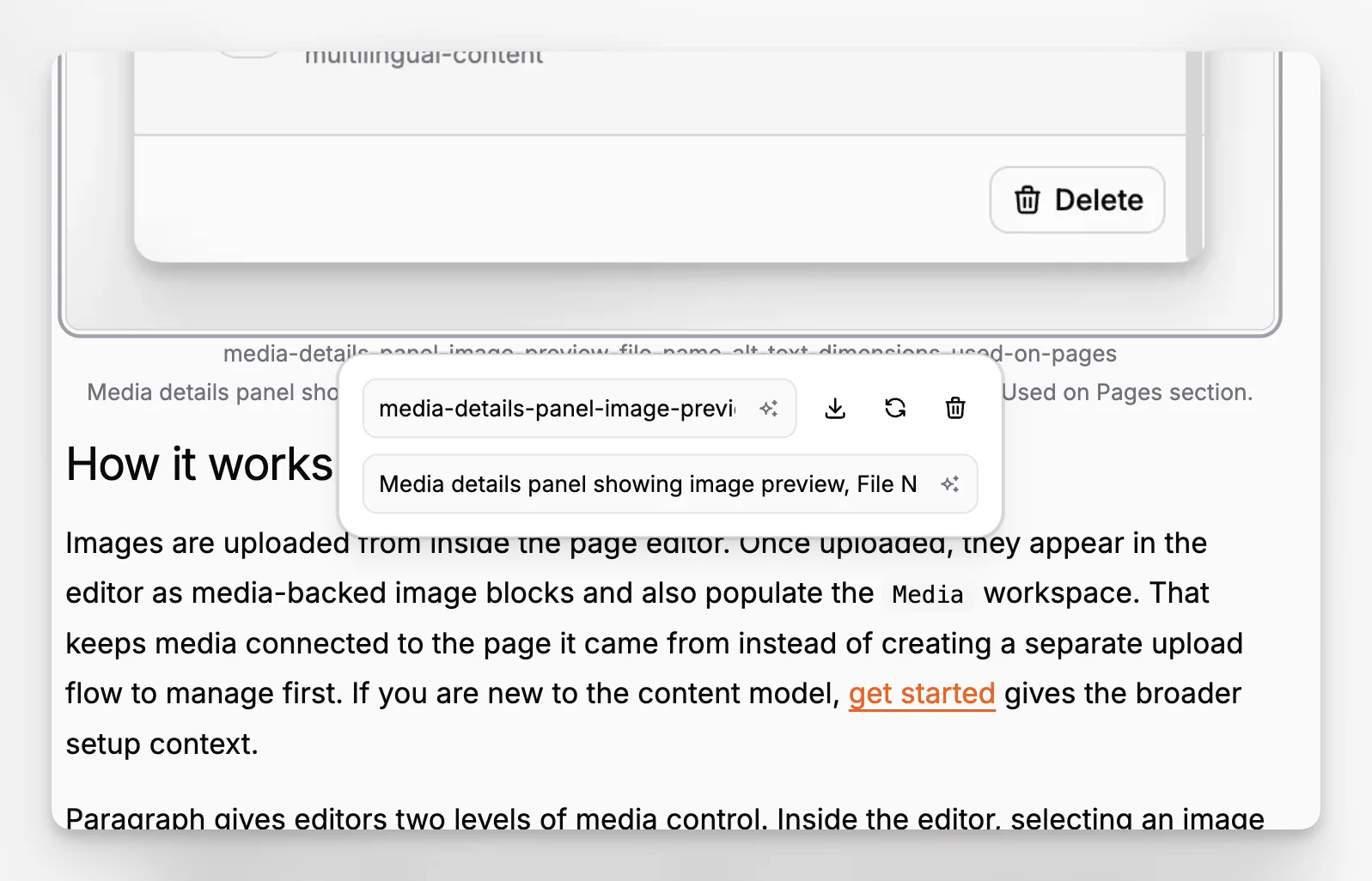
Paragraph gives editors two levels of media control. Inside the editor, selecting an image opens inline controls for slug, alt text, download, replace, and delete. Inside the Media workspace, the details panel is where teams manage core metadata like file name and alt text, inspect the full preview, and review page references.
Alt text changes made in the Media workspace sync across active page content that references the same media item. Deleting media is also reference-aware: Paragraph removes the image from referenced pages and then removes the library item, so editors are not left guessing whether a file is still embedded somewhere else.
The workspace is searchable, and search matches file name, alt text, and media type. That makes it easier to clean up assets or find a specific image long after the original page was published.
Who it is for
This is for content teams, marketers, and documentation owners who want image management to stay close to publishing work. It is especially useful when accessibility metadata matters, when multiple language variants live under the same content group, and when editors need confidence before deleting or updating images.
It also fits teams building frontend experiences with pre-built components or custom page rendering, because the CMS keeps image references explicit instead of hiding them behind a generic asset picker.
Limits and tradeoffs
Paragraph’s media workflow is page-aware by design. Uploads require a page, and the Media workspace is populated by images uploaded from the editor. That is useful for editorial safety, but it is not the same as a standalone DAM for uploading unrelated assets first and assigning them later.
Only image uploads are supported here, and SVG uploads are not supported. File names and alt text are editable in the library, but deleting media is immediate: there is no media trash or restore step. If a file is removed, it is removed from the library and from referenced pages.
References shown in Media are based on active pages. When a page no longer actively references an image, that file can move into Unassigned media until the content is restored or the unused asset is cleaned up. Access to view, edit, upload, or delete media also depends on your organization permissions.
Why it matters
Media becomes easier to govern when ownership and usage stay visible. Paragraph helps teams avoid broken images, hidden references, and accessibility drift by showing where files live, what metadata they carry, and what a delete action will affect.
That makes the Media workspace a practical part of publishing, not just storage. Editors can upload once in context, review assets later with real page references, and keep image metadata cleaner over time without turning media management into a separate system.